Compatibility comes before checkout
Start with the device you own.
Use these paths to find the right checks and product guides. Final compatibility depends on your exact model and the manufacturer’s documentation.
Mac
What to check first
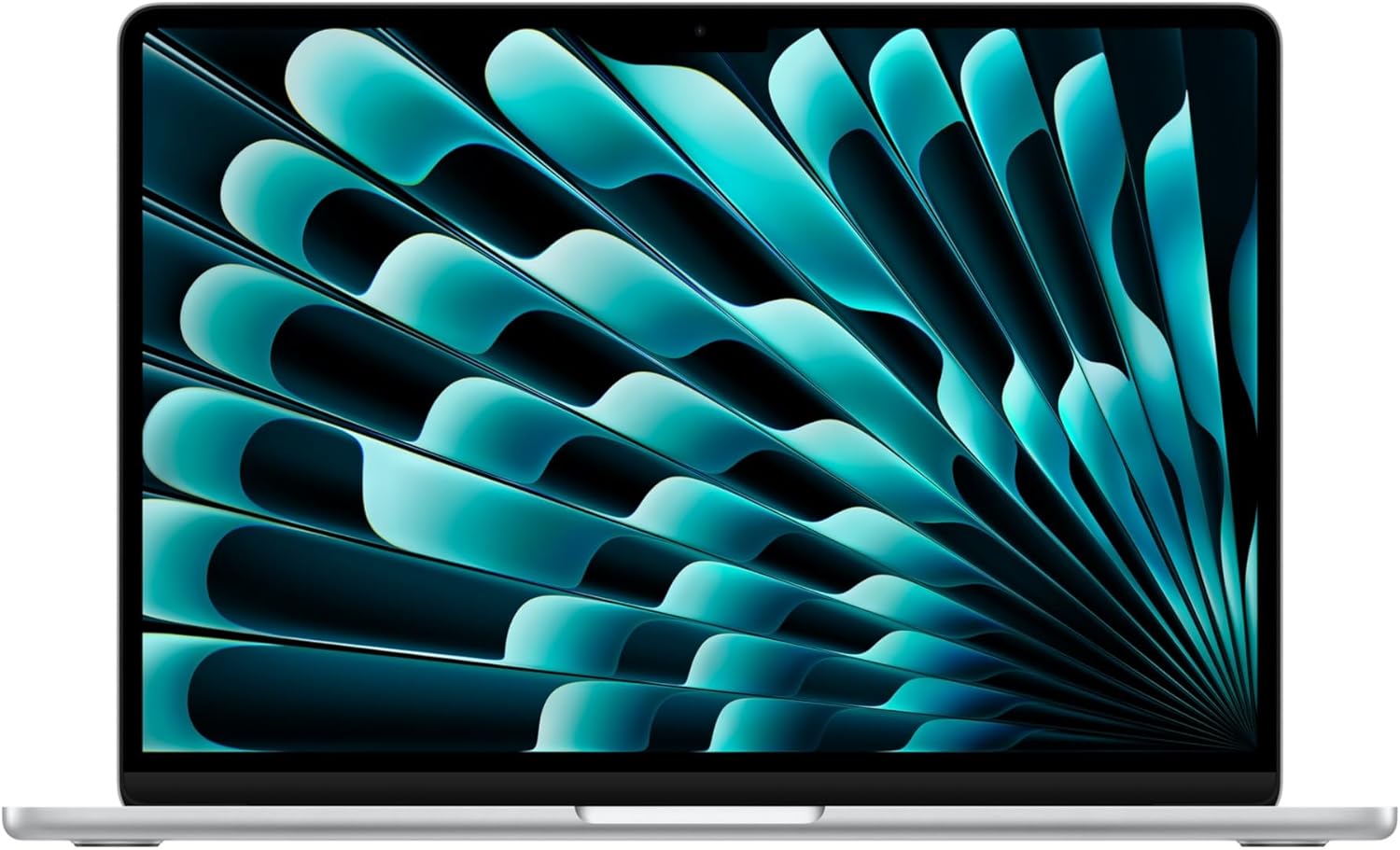
Check About This Mac for the exact model and chip. Verify the Mac’s native external-display support, port capabilities, power requirements, and the dock or adapter’s stated compatibility.
Explore Mac →iPad
What to check first
Find the full iPad model and generation in Settings → General → About. Match that model against Apple Pencil and keyboard compatibility; screen size alone is not enough.
Explore iPad →iPhone & MagSafe
What to check first
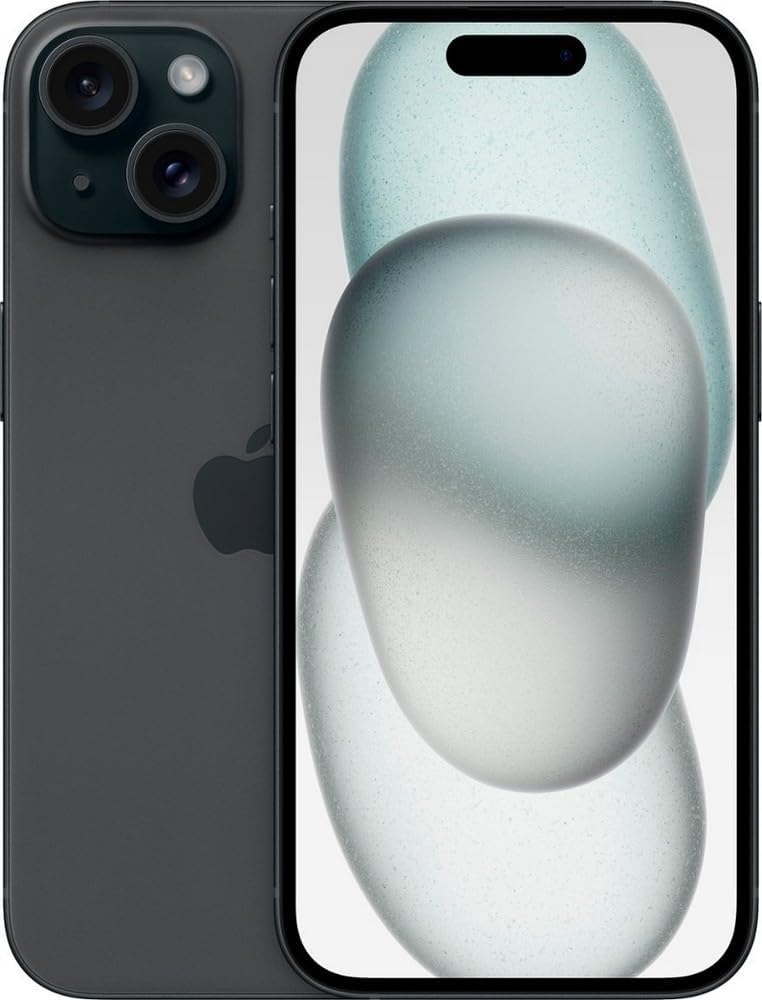
Confirm the exact iPhone model and whether its port is USB-C or Lightning. Match cases to the model, and check the cable, charger, and MagSafe or Qi compatibility separately.
Explore iPhone & MagSafe →Apple Watch
What to check first
Match the Watch case-size family and band fit. Check iPhone and software requirements for the exact Watch generation; cellular service requires separate carrier support.
Explore Apple Watch →AirPods & Audio
What to check first
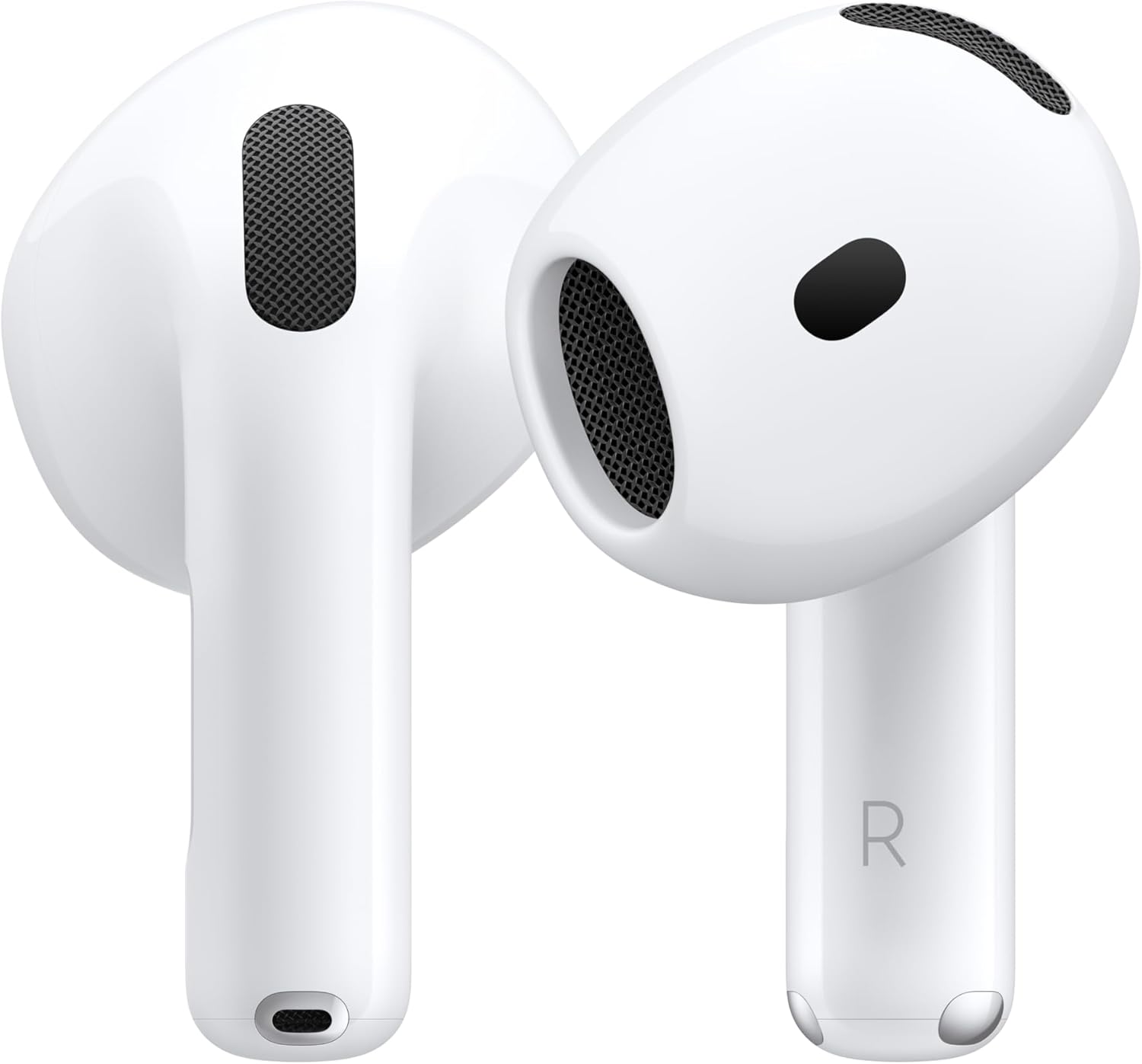
Match the exact headphone or earbud generation, charging-case connector, and features you want. Features available on Apple devices may differ from basic Bluetooth use on other platforms.
Explore AirPods & Audio →iPad Accessories
What to check first
Find the full iPad model and generation in Settings → General → About. Match that model against Apple Pencil and keyboard compatibility; screen size alone is not enough.
Explore iPad Accessories →Charging & Cables
What to check first
Match your device’s exact model, connector, and required feature. A connector that fits does not establish charging wattage, data speed, display support, or accessory compatibility.
Explore Charging & Cables →Adapters & Hubs
What to check first
Match your device’s exact model, connector, and required feature. A connector that fits does not establish charging wattage, data speed, display support, or accessory compatibility.
Explore Adapters & Hubs →Mac Accessories
What to check first
Check About This Mac for the exact model and chip. Verify the Mac’s native external-display support, port capabilities, power requirements, and the dock or adapter’s stated compatibility.
Explore Mac Accessories →Storage & Desk
What to check first
Check the storage device’s connection and your Mac’s port capabilities. Plan the filesystem, usable capacity, backup method, and included cable before buying.
Explore Storage & Desk →Apple TV & Home
What to check first
Check the exact Apple TV or smart-home generation, connection requirements, and included accessories. For Apple TV, verify the HDMI cable, television features, network connection, and desired storage variant.
Explore Apple TV & Home →Docks & Displays
What to check first
Check About This Mac for the exact model and chip. Verify the Mac’s native external-display support, port capabilities, power requirements, and the dock or adapter’s stated compatibility.
Explore Docks & Displays →Renewed Apple
What to check first
Confirm the exact device model, seller, stated condition, included accessories, battery terms, and return policy. Check Activation Lock and management restrictions before keeping a used device.
Explore Renewed Apple →iPhone Cases
What to check first
Confirm the exact iPhone model and whether its port is USB-C or Lightning. Match cases to the model, and check the cable, charger, and MagSafe or Qi compatibility separately.
Explore iPhone Cases →Screen Protectors
What to check first
Match the exact device model, screen shape, camera arrangement and case clearance. Check whether the package protects the display, camera lenses or both, and confirm the installation tools included.
Explore Screen Protectors →iPad Cases
What to check first
Find the full iPad model and generation in Settings → General → About. Match that model against Apple Pencil and keyboard compatibility; screen size alone is not enough.
Explore iPad Cases →Apple Watch Bands
What to check first
Match the Watch case-size family and band fit. Check iPhone and software requirements for the exact Watch generation; cellular service requires separate carrier support.
Explore Apple Watch Bands →Car Accessories
What to check first
Confirm the vehicle mounting surface, phone or case fit, and whether the accessory is a mount, a charger or both. Keep the installation clear of driving controls and airbags.
Explore Car Accessories →AirTag Holders
What to check first
Match your device’s exact model, connector, and required feature. A connector that fits does not establish charging wattage, data speed, display support, or accessory compatibility.
Explore AirTag Holders →Displays
What to check first
Check About This Mac for the exact model and chip. Verify the Mac’s native external-display support, port capabilities, power requirements, and the dock or adapter’s stated compatibility.
Explore Displays →Webcams & Microphones
What to check first
Check current macOS support, connector type, app requirements and included cables or adapters. Verify that the recording or meeting app supports the features you need.
Explore Webcams & Microphones →Smart Home
What to check first
Check documented Apple Home or Matter support for the exact model, plus any Thread border router, home hub, vendor bridge and network requirements. Wi-Fi connectivity alone does not make a device compatible with Apple Home.
Explore Smart Home →Gaming Controllers
What to check first
Check the supported Apple operating systems, connection mode and individual game support. Bluetooth pairing does not guarantee that every game or controller feature will work.
Explore Gaming Controllers →Mac Stands & Sleeves
What to check first
Check About This Mac for the exact model and chip. Verify the Mac’s native external-display support, port capabilities, power requirements, and the dock or adapter’s stated compatibility.
Explore Mac Stands & Sleeves →Printers & Scanners
What to check first
Verify AirPrint or current macOS support for the exact model. Check printing and scanning separately, plus the network connection, paper format and consumables.
Explore Printers & Scanners →