Mac / OAS buying guide
MacBook Air or MacBook Pro? Compare the Configuration You Will Use
Choose a MacBook around your apps, memory, storage, displays and everyday workspace. Compare exact configurations instead of judging by Air or Pro alone.
By Old Apple Store · Documentation checked 2026-11-02
As an Amazon Associate I earn from qualifying purchases. Amazon links may earn OAS a commission at no extra cost to you. How our links work.
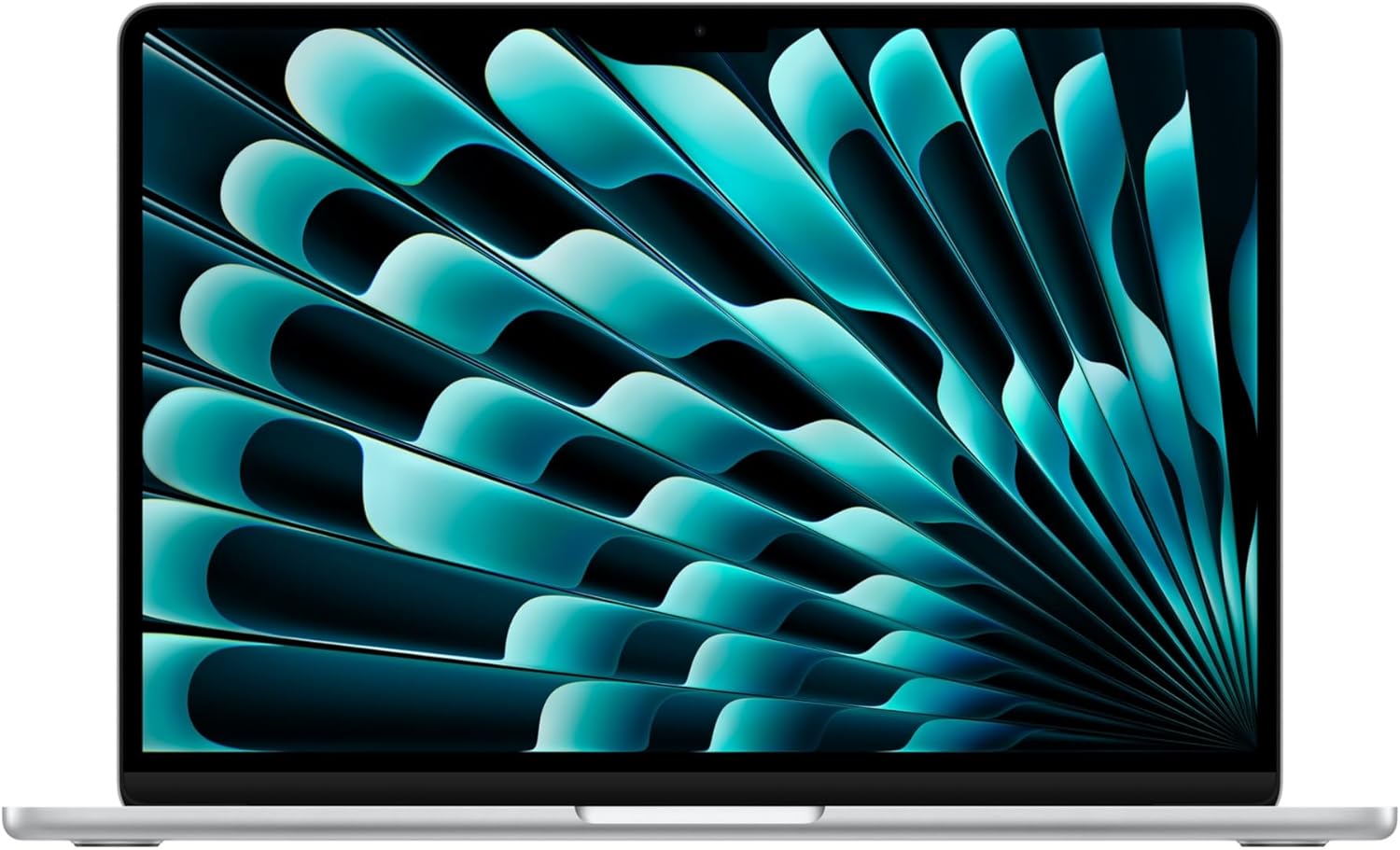
Start a MacBook comparison with the work the computer must do and the equipment it must connect to. “Air versus Pro” becomes useful only after you specify the chip, memory, storage and screen size on each side. A cheaper listing with less memory or storage is a different configuration, not simply a better deal on the same computer.
Write a short requirements list
Name the apps you use every day, the largest projects you expect to open, and any software with explicit hardware requirements. Add the number of external displays, the peripherals that need a direct connection, and how often the machine travels. If you already own a Mac, look at your current storage use and typical workload before guessing at an upgrade. Buying for a specific bottleneck is more useful than buying a product name.
Compare tangible differences
Apple's specifications provide a useful example: the 13-inch M4 MacBook Air has a 13.6-inch Liquid Retina display and two Thunderbolt 4 ports. The 14-inch M4 MacBook Pro adds an HDMI port and SDXC slot and uses a 14.2-inch Liquid Retina XDR display. These are specifications for those named models, not a promise that every Air or Pro has the same ports or capabilities.
Ask whether those differences remove friction from your day. A photographer regularly moving SD cards may value the built-in reader. Someone working almost entirely at a desk may care more about the external monitor setup than the laptop screen. If the machine lives in a backpack, compare its published dimensions and weight alongside the charger and adapters you plan to carry.
Keep memory and storage visible
Put each candidate into a small comparison: exact chip, memory, SSD capacity, display, condition and included charger. Avoid letting a headline discount hide a mismatch. Set aside room in the budget for backup storage before spending the full amount on the laptop. An external SSD can be a useful part of a workflow, but it is a separate purchase and should have a defined purpose.
For demanding creative or technical work, consult the app vendor's own requirements and workload-specific guidance. Our comparison focuses on published specifications; consider results from the applications you depend on when deciding whether an upgrade matters. If your purchasing decision depends on an exact render time, compile time or sustained workload, seek a clearly documented test for that precise configuration.
Check the desk before checkout
Display support can differ by chip and generation, so verify the exact Mac's support page before buying a dock. List the required cables, hub and charger as part of the complete cost. On Amazon, recheck the selected memory and storage after choosing a color, and distinguish new, used and renewed offers. A well-matched configuration is one that satisfies the documented requirements without forcing you to replace the rest of the setup unexpectedly.

