Docks & Displays / OAS buying guide
Mac Docks and Monitors: Check Display Support Before Buying
Choose a Mac dock by the exact chip, number of independent displays, resolution, refresh rate and charging output. Avoid connector-count confusion.
By Old Apple Store · Documentation checked 2026-11-02
As an Amazon Associate I earn from qualifying purchases. Amazon links may earn OAS a commission at no extra cost to you. How our links work.

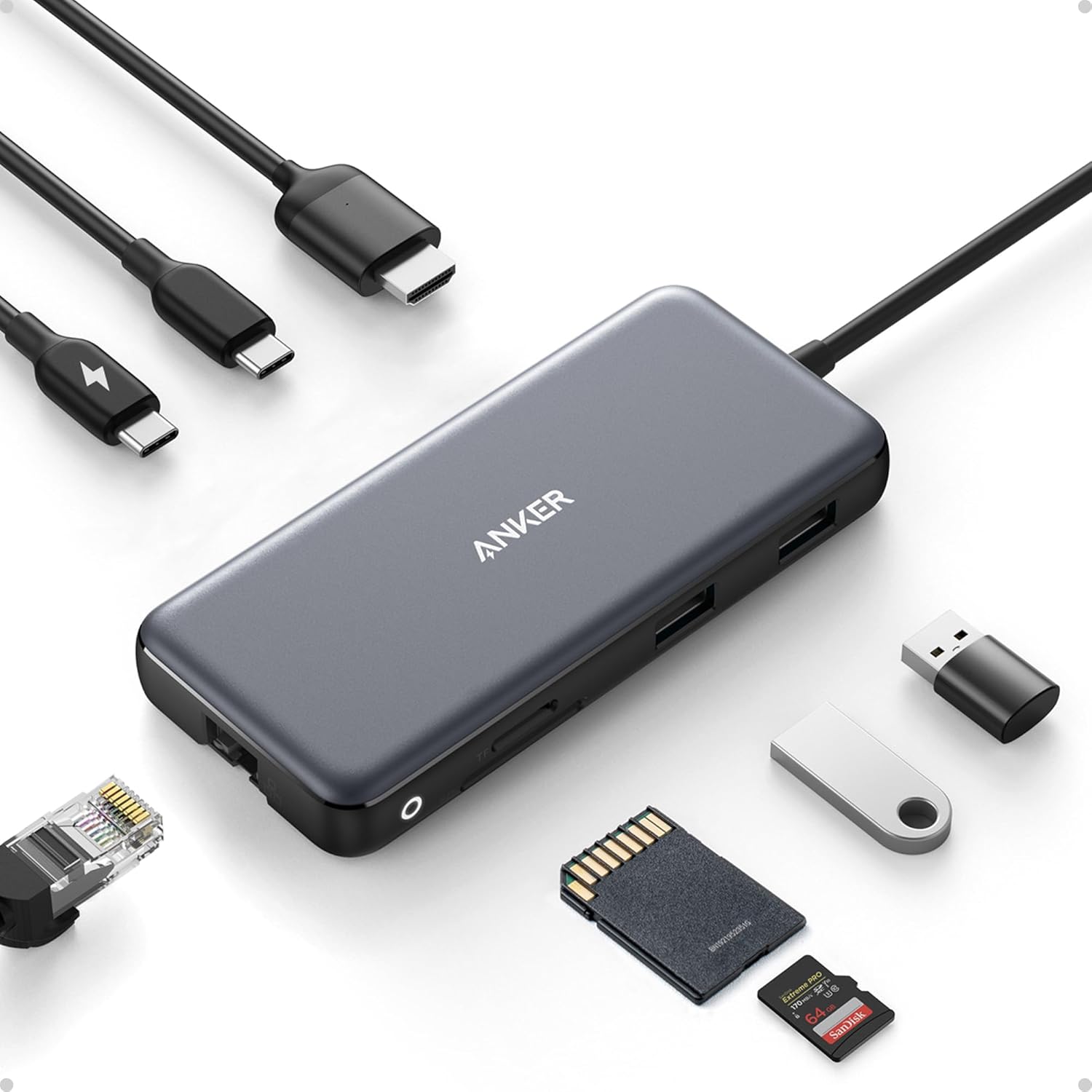
A dock with two HDMI sockets does not automatically give every Mac two independent external desktops. Begin with the Mac's exact model and chip, then specify the number of screens, resolution and refresh rate you want. The dock, cables and displays must form a supported combination. Buying the dock first makes that compatibility exercise harder.
Check the Mac's native display limit
Apple states that MacBook Air display support depends on the model and each display's resolution and refresh rate. A supported hub can change how screens connect without increasing the Mac's maximum supported count. The M3 MacBook Air specification, for example, distinguishes one external display with the built-in screen in use from a second display with the lid closed. Apple's current M4 Air support information allows two external displays alongside the built-in display. Always check your exact model before using an example as a shopping rule.
Distinguish extended desktops from mirrored screens
Write “independent extended desktops” in your requirements if each monitor must show different windows. A product photo with two monitors is not enough. Read the dock manufacturer's Mac compatibility table, including any software installation requirements and restrictions. Docks that use software-driven display systems should be evaluated on those terms, including support for the version of macOS you run and the applications that matter to you.
Build the connection plan
For each monitor, record the input you will use, its intended resolution and refresh rate, and the required cable. Then list the other devices: webcam, keyboard, external SSD, Ethernet and audio. Check whether the dock's advertised power figure is the adapter's total capacity or the amount delivered to the laptop. A clear manufacturer diagram is more useful here than a long list of ports without simultaneous-use details.
Consider what you already own. If the Mac has an appropriate HDMI port and you use one screen, a direct connection may be enough. If you disconnect the laptop every evening, a dock may be worthwhile for reducing the number of cables you handle. These choices depend on the desk arrangement; more ports are useful only when they solve a real connection problem.
Plan for troubleshooting before the return window closes
When the dock arrives, test the intended setup with all peripherals connected. Confirm that each monitor can show a different window, that the chosen refresh rate is available, and that the laptop receives the expected charging power. Keep the packaging while you verify compatibility. If something fails, simplify the setup to one display and one cable before concluding that every component is faulty.
For an Amazon offer, confirm the exact dock model number. Manufacturers often sell several visually similar revisions. Save the product specification and compatibility page with your order details so you can identify which combination you bought.